Load DIDs to Managed Service
The Manage SBC Prefixes page lets you load DIDs to your managed service. DIDs can be configured manually or can be imported from a *.csv or text file. You can create the file using any text-based editor such as Notepad or Microsoft Excel. A tag can be applied to each entry to associate the prefixes to a specific SBC site location (SIP Connection). The dial plan rule does not have a unique name and instead inherits the name of the configured dial plan e.g. 'CustDialPlan'. In the CLI script, the shortname of the service is used to match the prefix to the customer tenant. In the dial plan configured on the SBC device, the dial plan rule name inherits this shortname. Once imported to Live Platform, the uploaded numbers are synchronized to the SBC device connected to the Service Provider's UMP-365 device.
|
●
|
Hosted Essentials customers are billed for all uploaded numbers including both active and inactive DIDs. |
See also Troubleshooting Loading Dial Plans and Customer Operator Prefix Management.
|
1.
|
In the Live Platform portal Services page, select the check box for the relevant service and then from the Operator Connect drop-down, select Edit Service DIDs.
|
|
2.
|
Select the SIP Connection for which you wish to configure SBC prefixes, and then click Manage SBC Prefixes. |

|
3.
|
From the Select Dial Plan drop-down, select the required dial plan. The default dial plans for the Direct Routing service are as follows: |
|
●
|
CustDialPlan: Default Dialplan for the Direct Routing customers |
|
●
|
RegisteredUsers: Dialplan used for managing IP-PBX users when an IP-PBX is configured in the Onboarding Wizard. See Import IP-PBX Users. |
|
●
|
PBXDomains: Dialplan used for managing PBX domain customers |
|
●
|
Call Forwarding: Configure call forwarding destinations (Call Forwarding) |
|
●
|
Voca: Configure Voca CIC numbers (Voca CIC) |
|
4.
|
In the Tag/PSTN Gateway field, from the drop-down, choose the dial plan tag representing the sub domain of the customer. The list includes the Online PSTN Gateway of the Service Provider (Derived Trunk FQDN) and the PSTN Gateway values for all SIP Connections created under the customer tenant using the Automatic DNS and Sub domain script option in the Onboarding wizard. The tag value is composed as <SIP_Connection_Name>.<Service Provider_Domain_Name>. For example if the SIP Connection name is 'site1' and the domain name (FQDN) of the Service Provider SBC is 'spsbcus.audiocodes.be' then the dial plan tag is 'site1.spsbcus.audiocodes.be'. If this script option was not used, then the tag value is composed as <Customer_Shortname>.<Service Provider_Domain_Name>. For example, if the customer short name is 'enterprisetrunk' and the domain name of the Service Provider SBC is 'spsbcus.audiocodes.be', then the dial plan tag is 'enterprisetrunk.spsbcus.audiocodes.be'. |

This tag may be one of the following values:
|
●
|
The derived Trunk FQDN of the SBC device (the Online PSTN Gateway of the Service Provider), the custom PSTN Gateway tag defined for the SIP Connection or the matching characteristics for routing and outbound manipulation. |
|
●
|
The Tenant's Azure subscription ID. |
The dial plan rule does not have a unique name and instead inherits the name of the configured dialplan ‘CustDialPlan’. In the CLI script, the shortname of the customer is used to match the prefix to the customer tenant and in the dial plan configured on the SBC device, the dial plan rule name inherits this shortname.
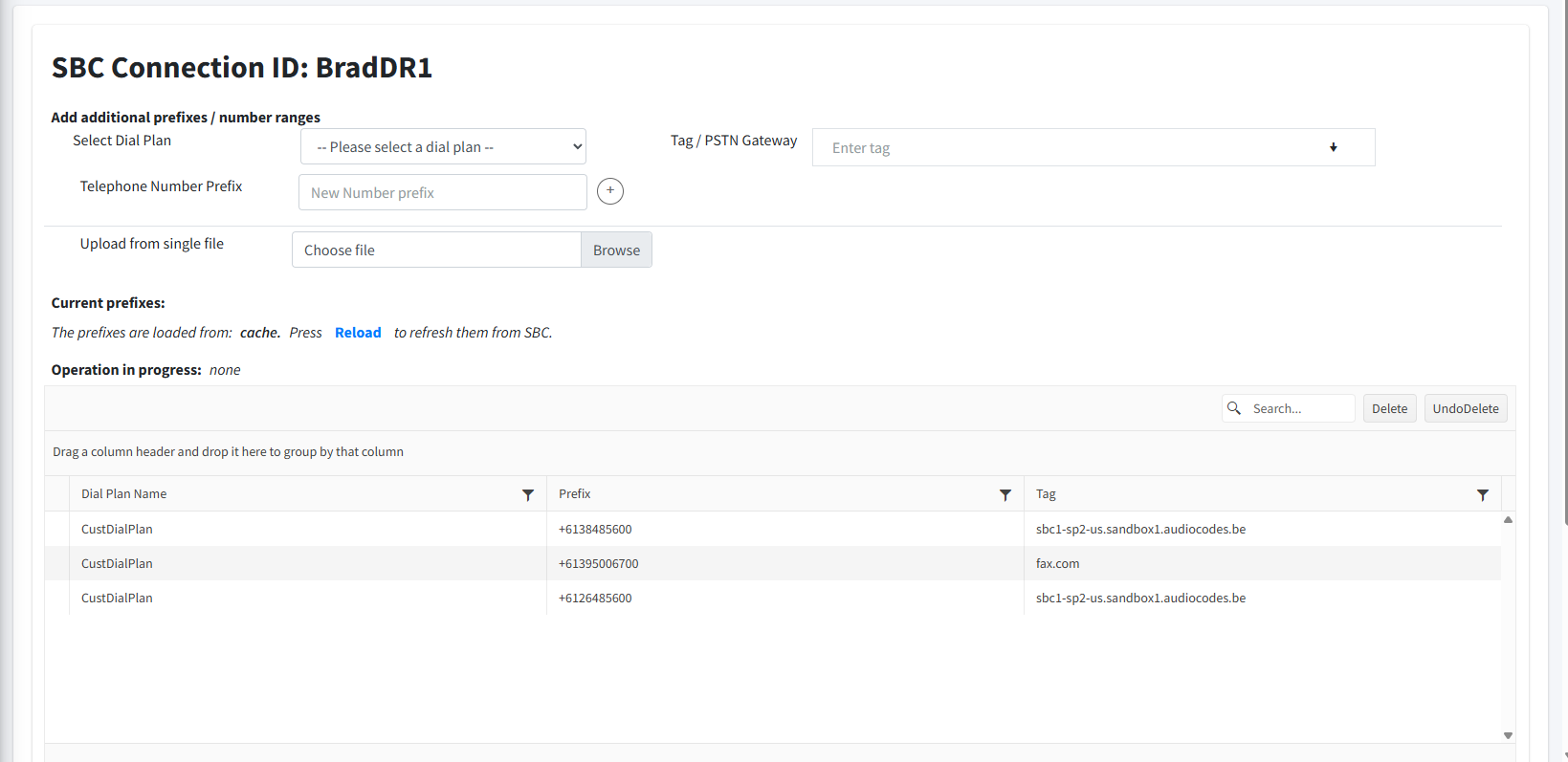
Number ranges and calling prefixes can only be configured by your provider or reseller. If your provider or reseller has already loaded numbers to your tenant, they are displayed in the Dial plan table. You cannot remove these numbers.
|
5.
|
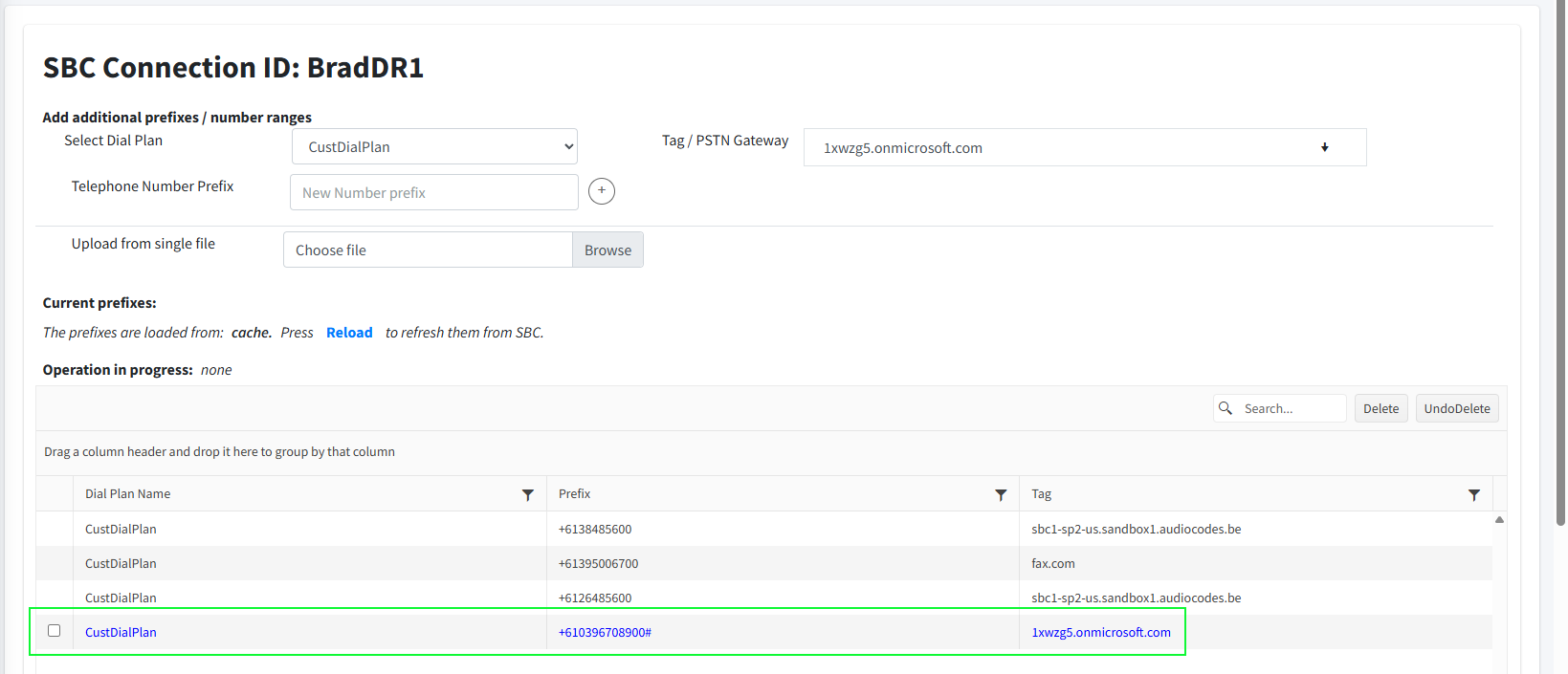
In the Telephone Number Prefix field, add individual E.164 telephone numbers . Add the entry and then click  . . |
All numbers should be configured in E.164 format with the following validation rules:
|
●
|
Country calling code (international). |
|
●
|
Local telephone number or subscriber number. |
The number has the following structure: [+][country code][area code][subscriber number].
Example United States Telephone number: +12127881500
|
●
|
Subscriber number: 7881500 |
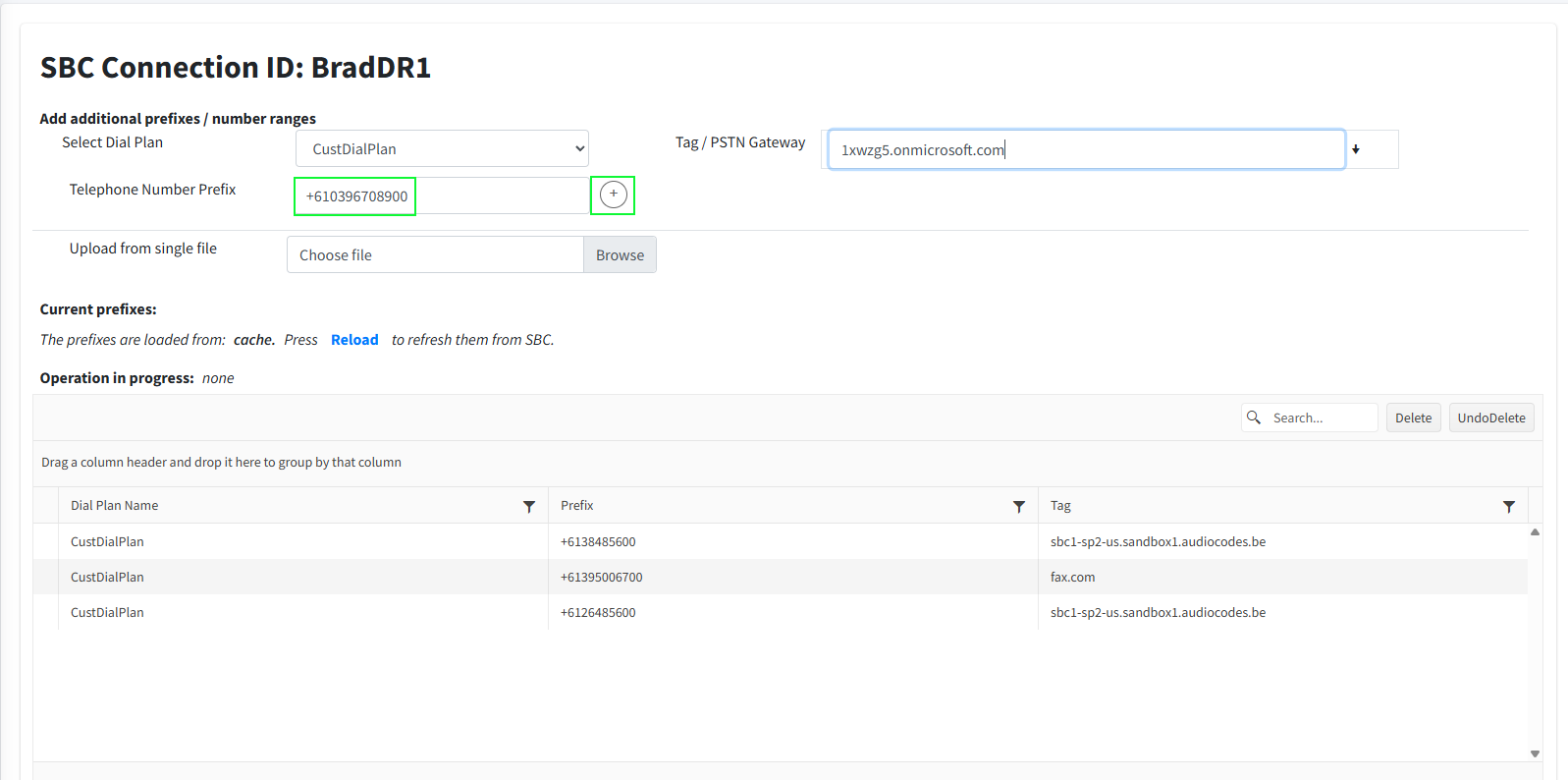
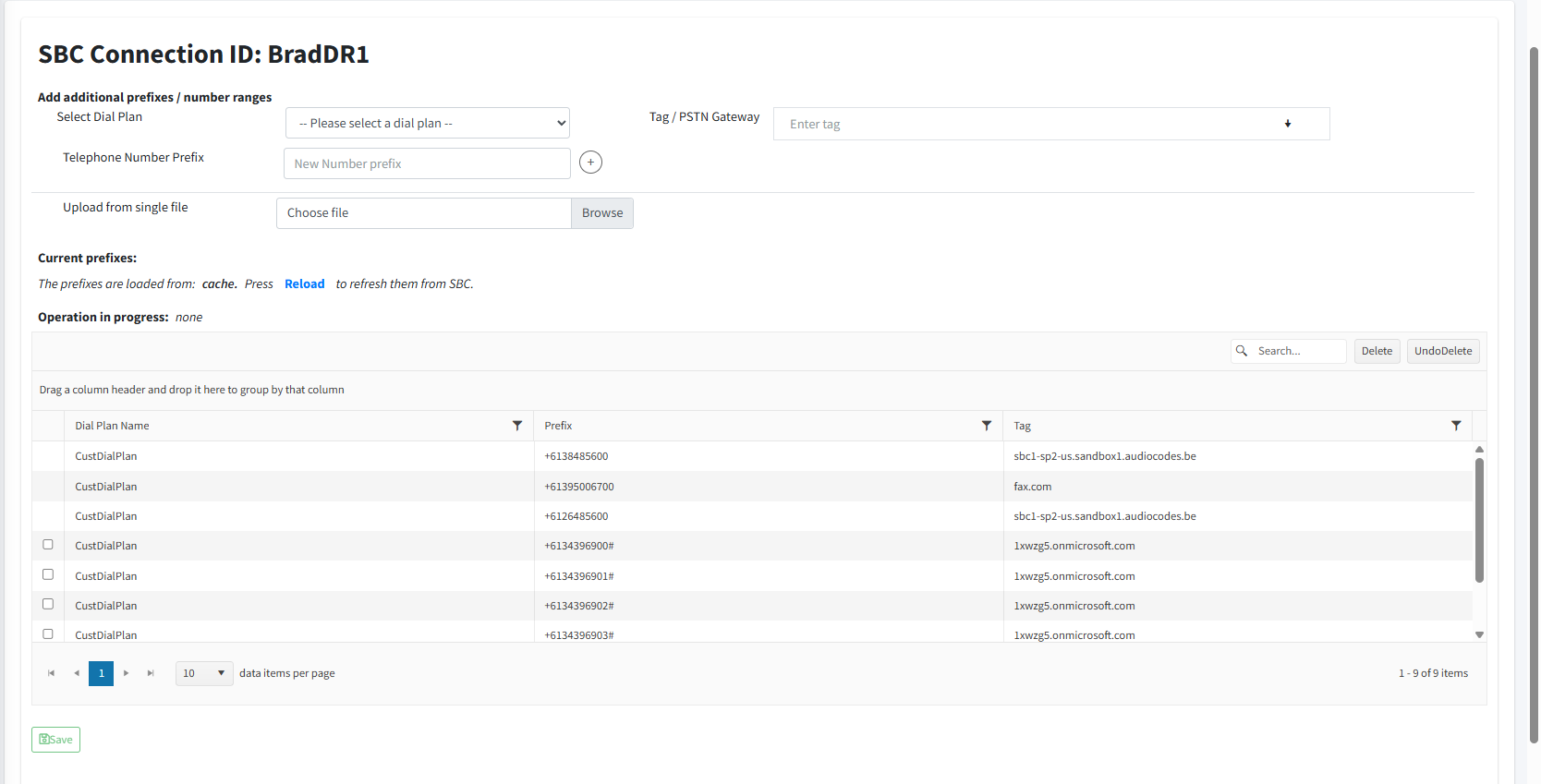
The newly added number is displayed in blue in the dial plan table. Each E.164 number is appended with an #.
|
6.
|
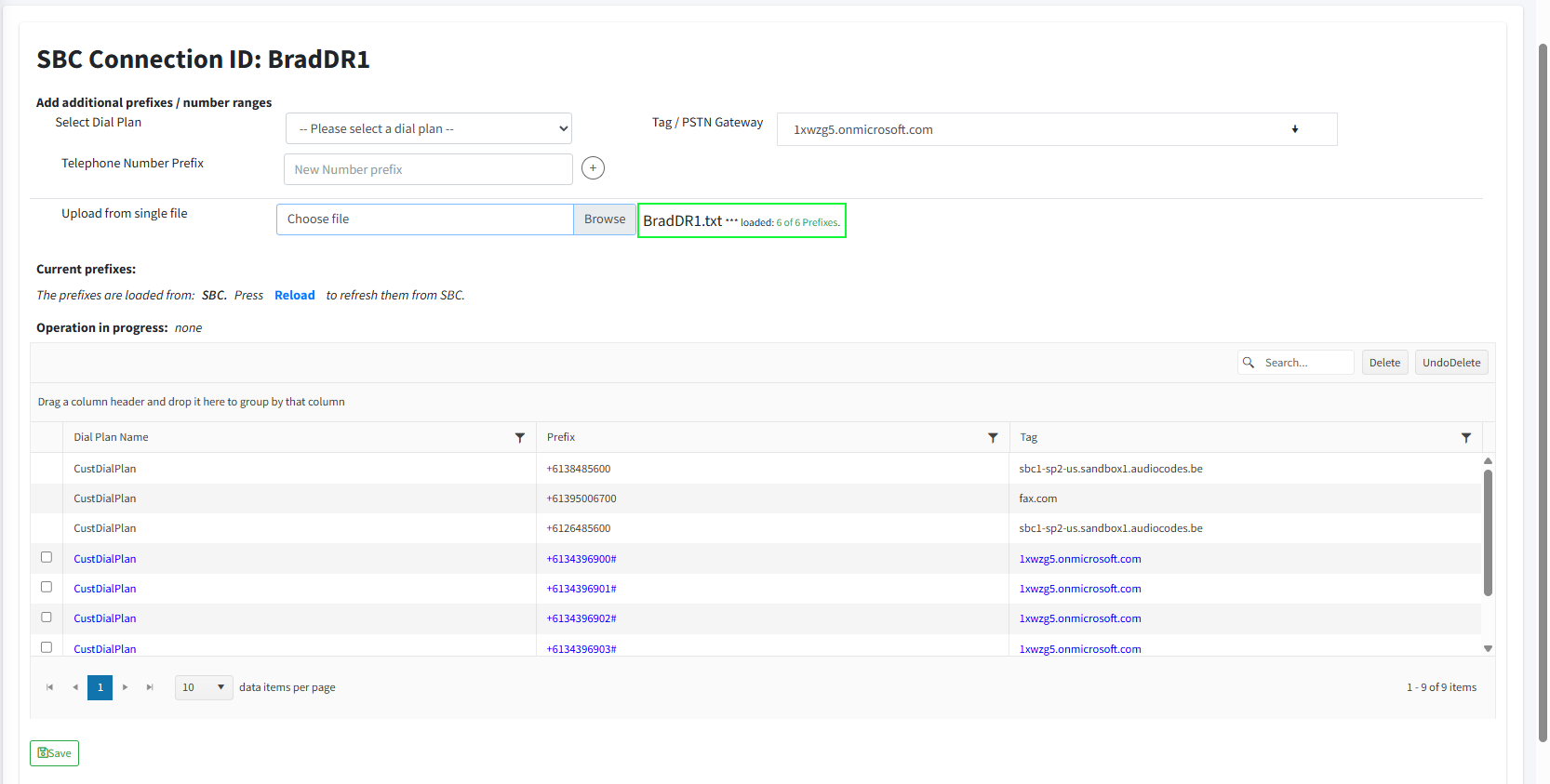
Browse to import a csv or text file containing the list of numbers in the format shown below. Ensure that the there are no additional spaces at the end of each entry and that there are no empty lines, see Troubleshooting Loading Dial Plans for example parsing errors. Its recommended to open the file in a text editor to verify that the syntax is correct. |
Copy
dialPlanName,prefix,tag
CustDialPlan,+442064936002,sbc1-sp2-us.sandbox1.audiocodes.be
CustDialPlan,+442064936003,sbc1-sp2-us.sandbox1.audiocodes.be
CustDialPlan,+442064936004,sbc1-sp2-us.sandbox1.audiocodes.be
CustDialPlan,+442064936005,sbc1-sp2-us.sandbox1.audiocodes.be
CustDialPlan,+442064936006,sbc1-sp2-us.sandbox1.audiocodes.be
CustDialPlan,+442064936007,sbc1-sp2-us.sandbox1.audiocodes.be
CustDialPlan,+442064936008,sbc1-sp2-us.sandbox1.audiocodes.be
CustDialPlan,+442064936009,sbc1-sp2-us.sandbox1.audiocodes.be
where:
|
●
|
DialPlanName: Name of the dial plan. This name must appear for each entry in the dial plan. |
|
●
|
Prefix: Source or destination number in E.164 format |
|
●
|
Tag: The derived Trunk FQDN of the SBC device configured as the Online PSTN Gateway of the Service Provider, the tag configured for the SIP Connection or the matching characteristics for routing and outbound manipulation. See Managing SBC Devices to verify the relevant derived Trunk FQDN tag of your Service Provider SBC device. |
Headers are not required when configuring single numbers.
The name of the loaded file and message indicating the number of successfully loaded prefixes is displayed.The newly added numbers are displayed in blue in the dial plan table. Each E.164 number is appended with an #.
|
7.
|
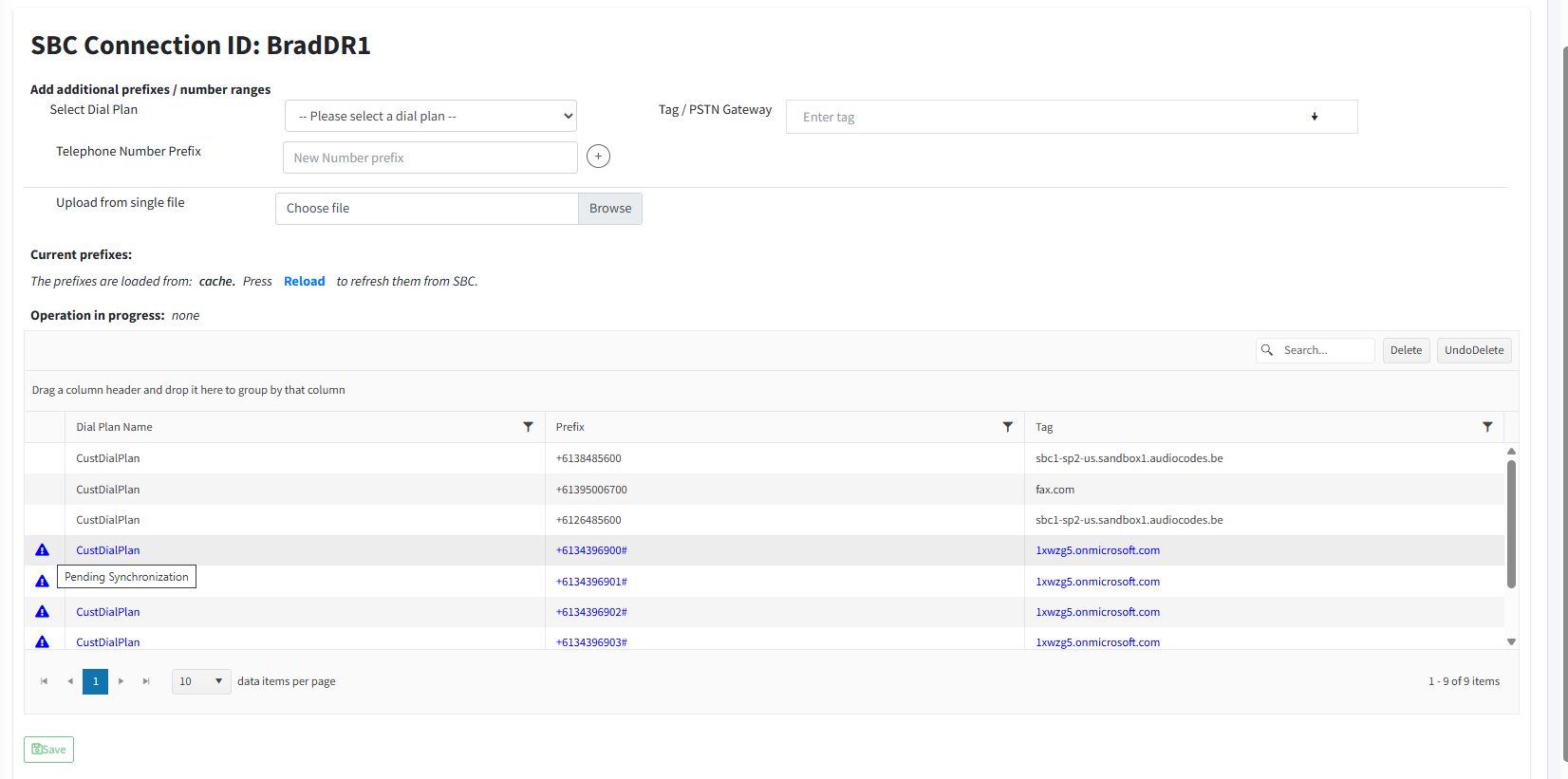
Click Save. The page is closed and the numbers are loaded to the SBC device. When you reopen the page, you see that the numbers that are displayed in blue are Pending Synchronization to the SBC device. Click Reload to refresh the page to view the numbers in the table after they have been synchronized with the SBC. |